Choose a video in Library → Edit → Trim → Set start and end → Check playback → Export
STEP 01
Open your video from the library
Open a video in Library and tap Edit on the playback screen. You can also choose Edit video from its menu. Play the original first to find the beginning and end of the attempt you want to keep.
Keeping a little footage of the starting holds helps viewers follow the movement. Decide how much of the finish or descent to include. This guide explains how to keep one continuous section from a single video.
STEP 02
Adjust the start and end on the timeline
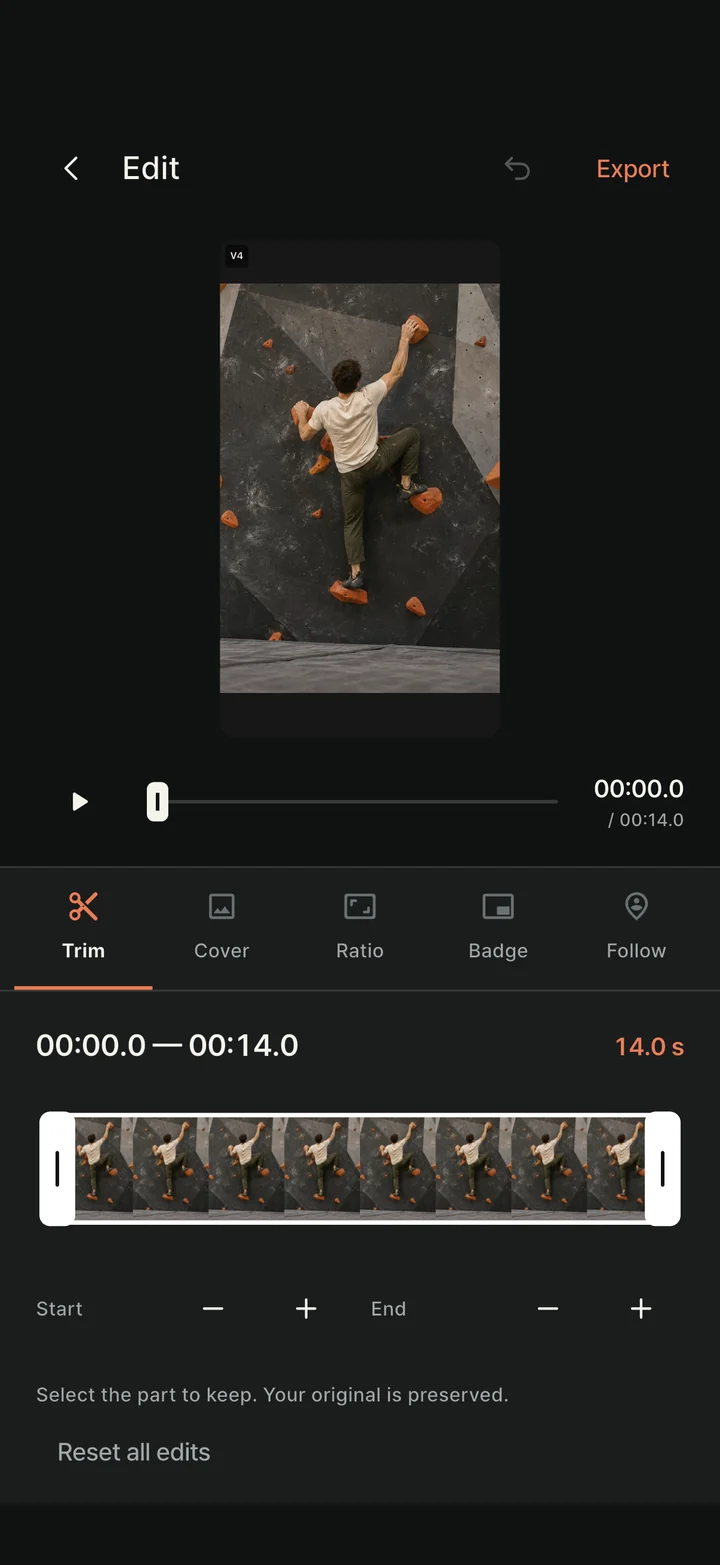
Choose Trim in the editor and drag the two timeline handles to set the section to keep. The left handle sets the start; the right handle sets the end. Check the displayed times as you adjust them.
Use the fine-adjustment buttons if dragging is not precise enough. Play the result to make sure you have not cut off the first move or the moment you reach the final hold. Leave a little extra time if the clip starts or ends too abruptly.
STEP 03
Export your edit and check the file
Tap Export at the top right to check resolution and audio. Choose the mute option if you want to remove sound. A new MP4 file is created only after you tap Start export.
Play the finished edit to check its duration and sound, then save or share it. Trimming does not overwrite the original, so you can choose a different section and export again while you still have the original.