ClimbCut
EN
Get the app
Menu +
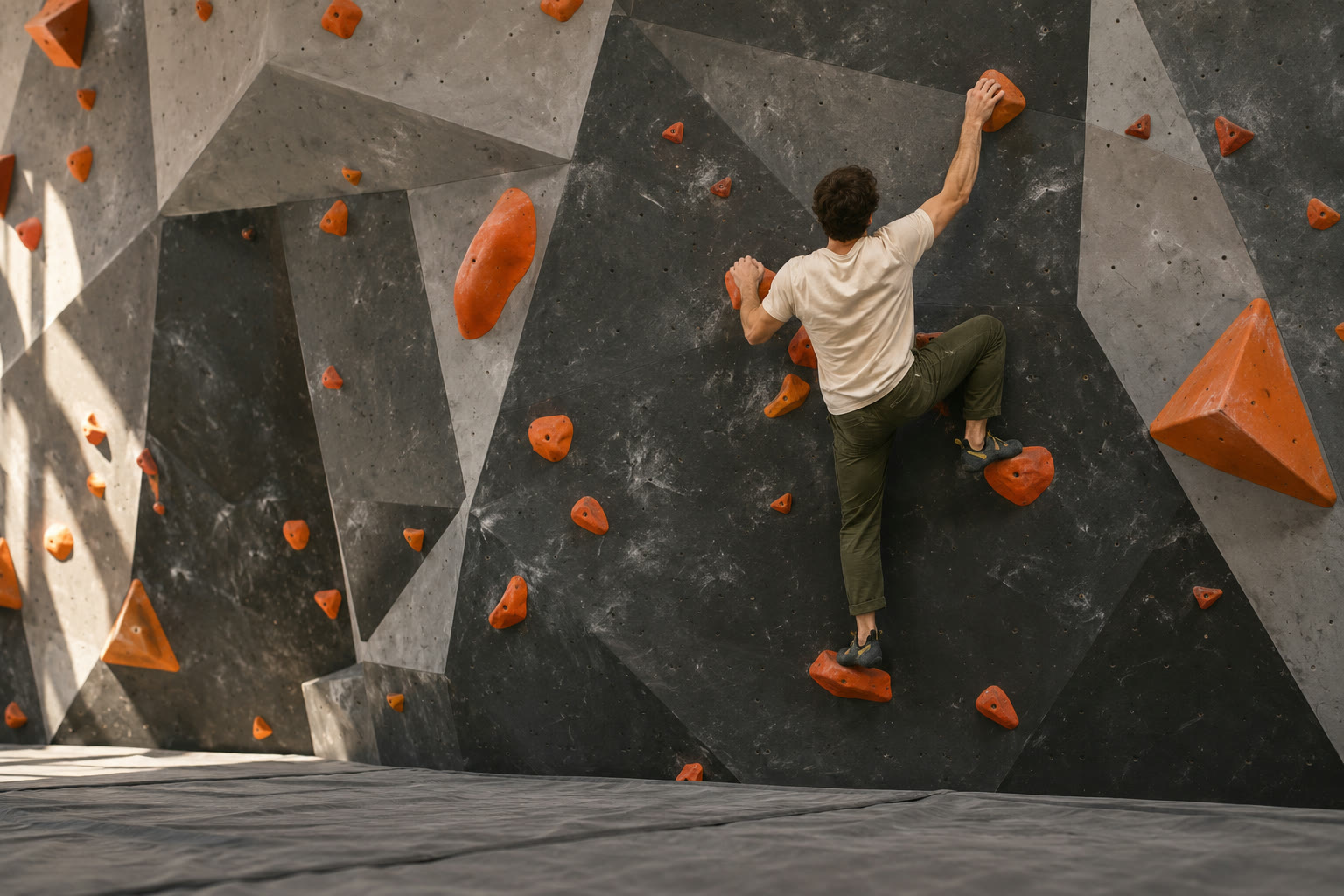
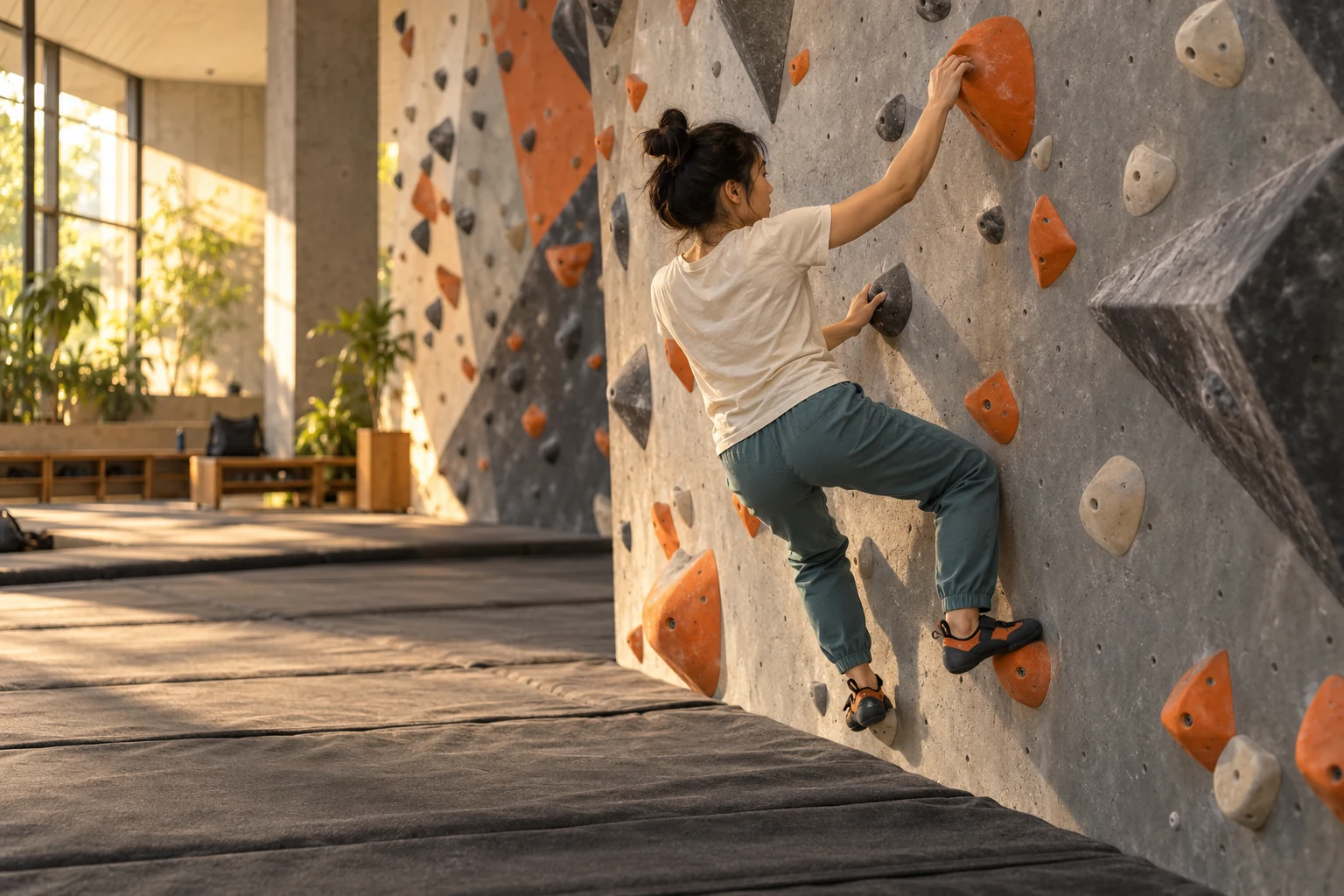
A climber following orange holds on an indoor bouldering wall

CLIMB. CUT. KEEP.

Every climb,
yours to keep.

From bouldering to lead, keep a record of your climbs.
Record, organize and edit your climbing videos with ClimbCut.

Explore ClimbCut
Record your next move.SCROLL TO EXPLORE

From a ClimbCut user

Filmed on a tripod.
See the difference.

@tilda_go_up shared this climbing footage with us. Compare the original ultra-wide recording with the person-tracking edit made in ClimbCut.

  1. 01
    Capture the whole wall

    Use a tripod and an ultra-wide lens to keep the wall in frame.

  2. 02
    Edit with person tracking

    Select the climber to create an edit that follows their movement.

Download ClimbCut Watch on Instagram ↗

Edited for our official social accounts and website with the creator’s permission.

User footage · 24 seconds · Korean captionsOriginal footage by @tilda_go_up ↗
Read the video description

This video compares a tripod-mounted ultra-wide climbing recording with ClimbCut’s person-tracking edit, then shows how to film it. The closing card explains that the feature is free to use and shows how to find ClimbCut on the App Store and Google Play.

MADE FOR YOUR NEXT MOVE

Focus on the climb.
ClimbCut keeps the story.

From recording to organizing, editing and sharing.
Keep every attempt in one place.

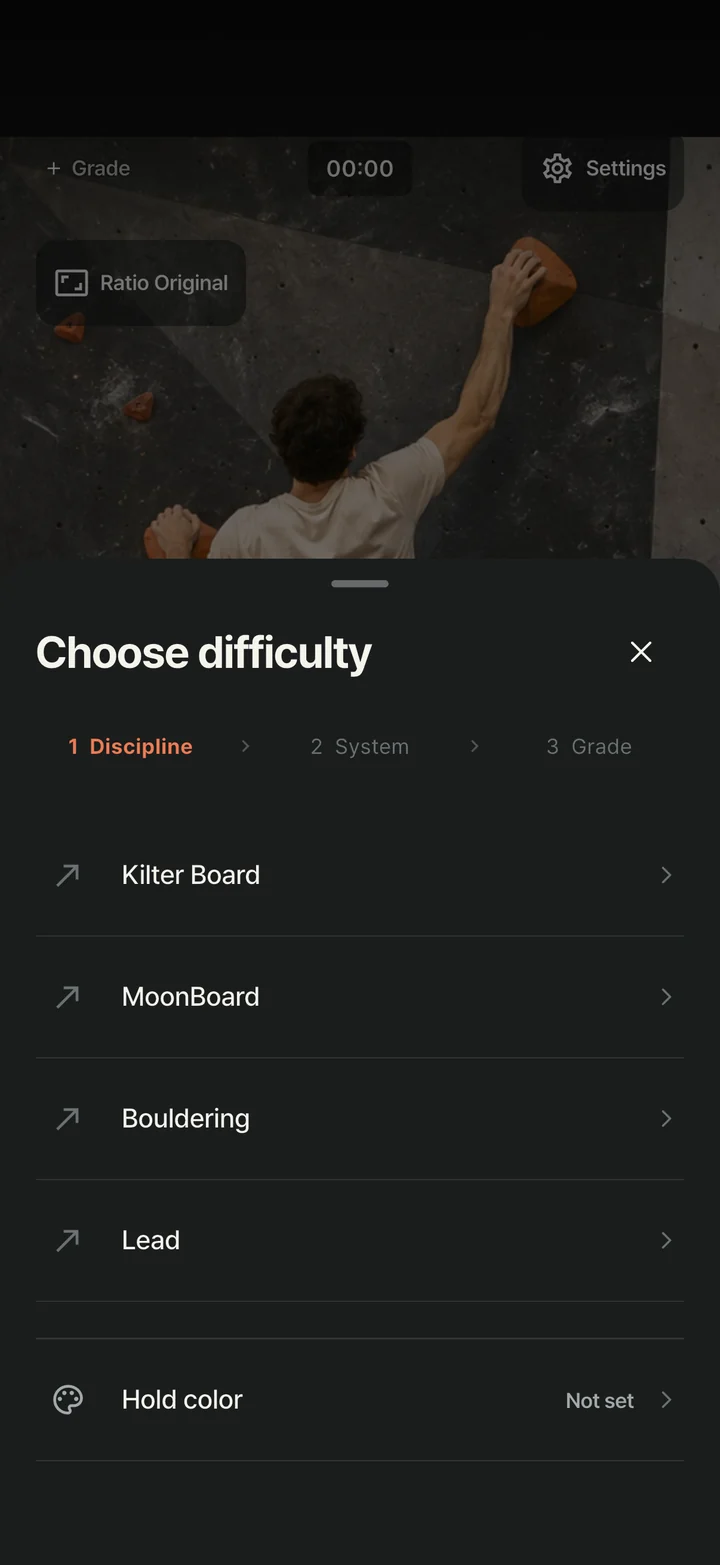
ClimbCut discipline selection for Kilter Board, MoonBoard, bouldering and lead

MORE THAN A VIDEO

Remember the problem.
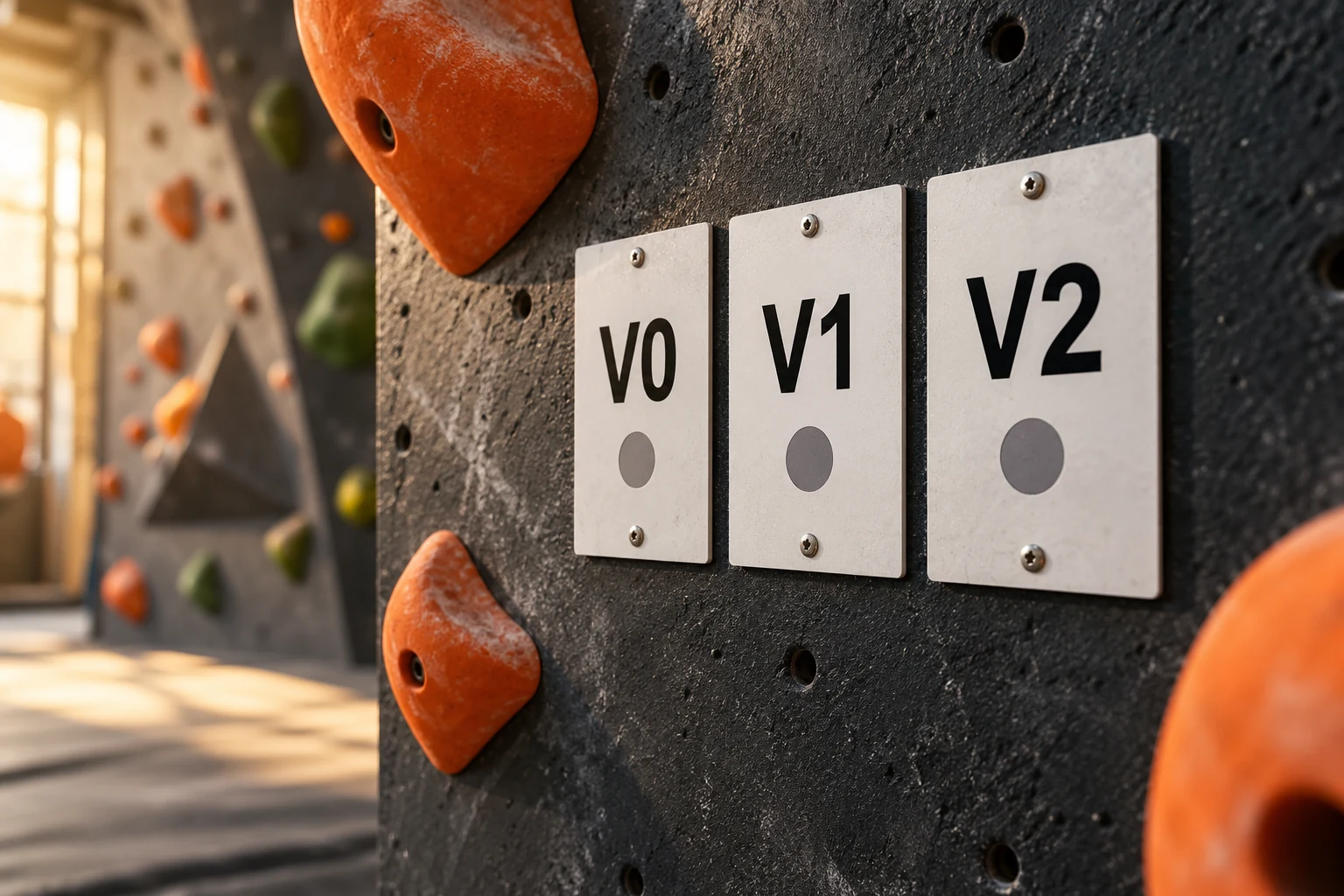
Keep the grade.

Discipline → grading system → grade. Three taps.
Add the hold color too,
so you know which problem it was.

V gradesYDSFrenchTape colors

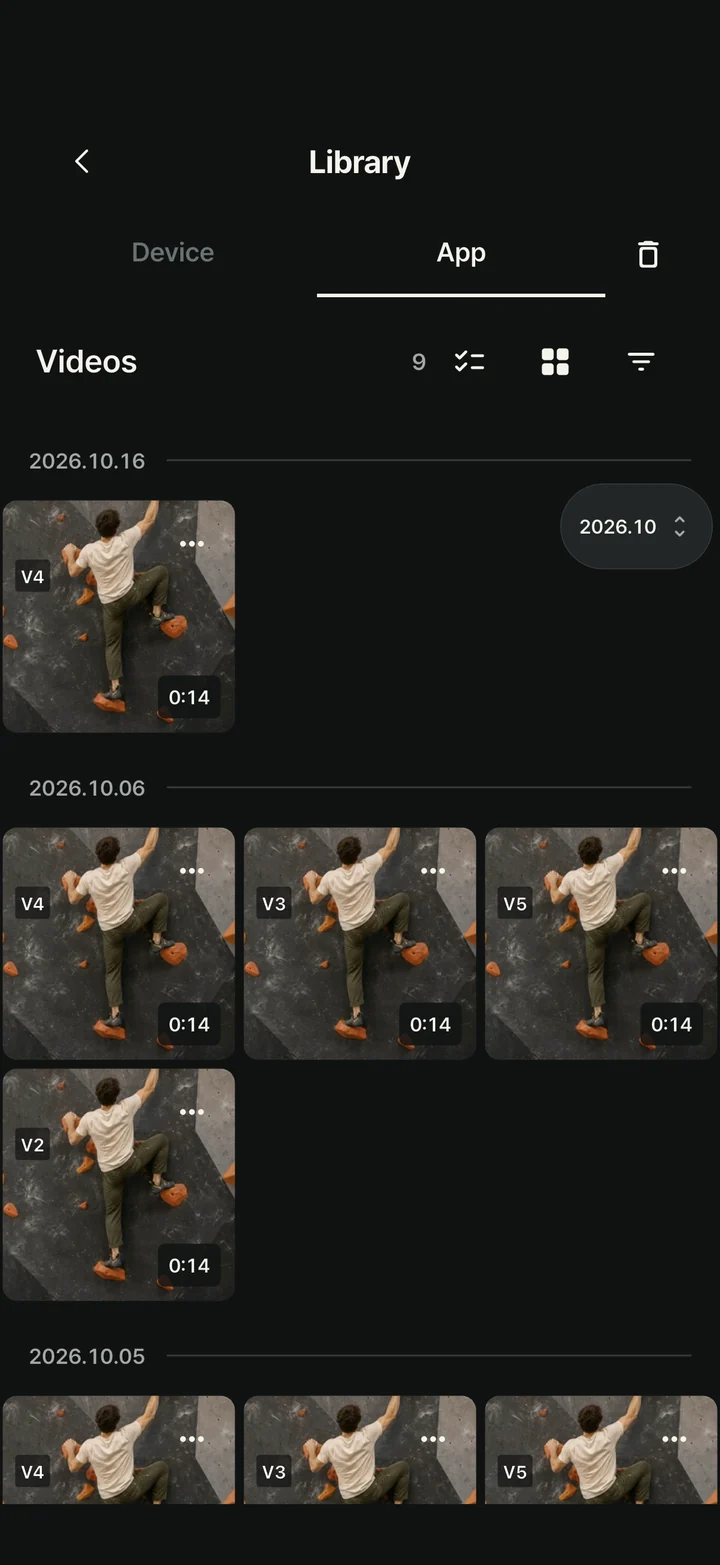
New recordings with a selected grade automatically show a grade badge on their library thumbnail.
In Cover or Badge, change its shape, position and size, or turn it off.
Hiding the badge keeps grade filters available. Your original stays unchanged; badge settings apply to newly exported edits.

Grade badges and filters →

YOUR PERSONAL CLIMBING ARCHIVE

Find that attempt.
Pick up where you left off.

A personal library for your climbing videos.
Browse by date and filter by discipline or grade,
then select several videos to manage them together.

02

ONE MORE TRY.
ONE MORE MEMORY.

Organized by dateDiscipline and grade filtersManage multiple videos
ClimbCut video library showing dates and grade badges
YOUR COLLECTION

Look closer.
Or browse at a glance.

Grid · List · Large thumbnails · No thumbnails
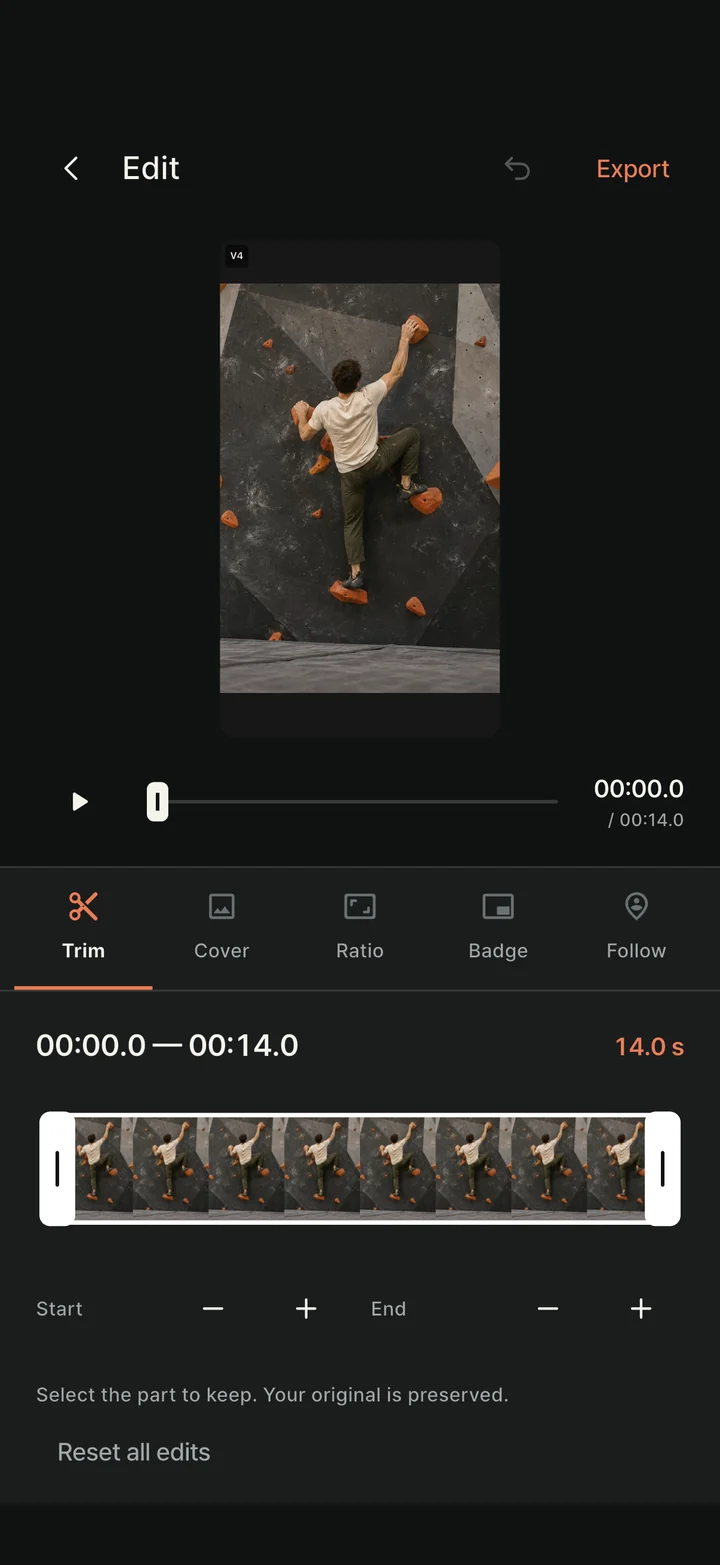
ClimbCut editor with start and end trim controls

KEEP THE GOOD PART

Keep the moment
that matters.

Trim the wait before your climb. Keep the send.
Choose a library cover and add the grade,
and your clip is ready to share.

Trim the start and finish.

Drag the timeline handles to set the start and end, then fine-tune the timing.

Edits are exported as new files, preserving your original.
Your chosen cover is used in the library. Choose a social media cover separately when posting.

FRAMED FOR YOUR FEED

Made for your feed.
Vertical or wide.

Use framing guides while recording,
then fit the whole video or fill the frame when editing.
Adjust the position and zoom to keep the part you want.

Keep the original. Apply your chosen ratio to the exported edit.

Aspect ratio9:16Reels · Shorts

Choose a ratio to compare the frames.

BEFORE YOUR FIRST MOVE

Before you climb,
check your camera.

Is the picture clear? Is your whole route in the frame?
Check the view and adjust it before recording.

01 / PRE-RECORDING BLUR HINT

A blurry preview?
Check before you record.

If the preview stays blurry, the app suggests checking your lens. Move anything covering it and gently wipe away dust or fingerprints.

The picture looks blurryTry gently wiping the lens

You can turn this hint off in recording settings.

This runs only while preparing to record. It cannot distinguish dust from an obstruction, and detection stops when recording starts.

02 / CAMERA CONTROLS

Keep every move in view.
From framing to exposure.

Frame both the starting and finishing holds. Set the zoom, tap where you want to focus, and adjust exposure if the image is too bright or dark.

  • Zoom · LensesDrag to adjust zoom, or pinch with two fingers
  • Focus · ExposureTap to request focus, adjust brightness and request a lock
  • Front · RearChoose the camera and supported lens before recording

Lens, focus and exposure controls vary by device. A lock request does not confirm that the camera has locked; check the preview before recording.

ROOM FOR YOUR NEXT TRY

Keep the attempts.
Clear the clutter.

Recover videos deleted by mistake,
and make room for your next session.

03 / RECOVER FROM TRASH

Deleted by mistake?
Bring it back from Trash.

Deleted videos first move to Trash. Open Trash in the library and select what to restore. You can restore several videos at once.

  1. Open Trash
  2. Select videos
  3. Restore

Permanently deleted videos cannot be restored. Trash is not emptied automatically.

Library guide →

04 / STORAGE MANAGEMENT

Check file sizes.
Manage videos together.

List view shows each video's duration and size. Select unwanted videos to move them to Trash, then permanently delete them to free storage.

  1. Check file sizes
  2. Select videos
  3. Delete · Empty Trash

Videos in Trash still take up space. Check what you want to keep before deleting permanently.

Storage and deletion FAQ →

MAKE YOUR NEXT RECORD

From recording climbs
to sharing your videos.

Frame your phone, trim each attempt and organize your videos by grade.
Explore all climbing video guides →

A FEW THINGS TO KNOW

A few questions?
Start here.

support@climbcut.team
Are ClimbCut and 클라임컷 the same app?+

Yes. 클라임컷 is the Korean name for ClimbCut, the climbing camera and video editor. This is the official website.

Official iPhone & Android download links →

When can I use ClimbCut?+

ClimbCut is available now for iPhone and iPad on the App Store, and for Android on Google Play.

Do I need to sign in to record?+

No. You can record without signing in or selecting a grade. The camera is ready when you open the app.

Where are my recordings stored?+

They are stored in the app's library on this device. Save or share files you need to keep. Deleting the app can also delete its library, so keep a separate copy of important videos.

Does editing change the original?+

Your original is preserved. Trim, aspect ratio and watermark settings apply to exported edits. The recording preview's grade display is not burned into the original.

Does the app post directly to social media?+

You can send a finished video through the system share sheet. Review the post and finish uploading in the destination app.

ClimbCut app icon

YOUR CLIMB. YOUR CUT.

Your next send,
with ClimbCut.

A simpler way to keep your climbs.
Start on iPhone, iPad and Android today.

Beta testing inquiries
CLIMBCUT IN ACTION

One attempt. One story.

Actual development build · The climbing scene is demo content.

START CLIMBING

New to climbing? Start with your question.

From choosing an activity and a first gym to reading problems and keeping your first record.