Choose a grade before recording → Check the thumbnail badge → Adjust Cover or Badge → Filter the library by grade
STEP 01
Save the grade when you record
At the top left of the recording screen, choose the discipline, grading system and value in order. Select the relevant option for Kilter Board, MoonBoard, bouldering or lead, and V grades, YDS, French or tape colors. Hold color is a separate setting. New to V grades? See the bouldering grades chart →
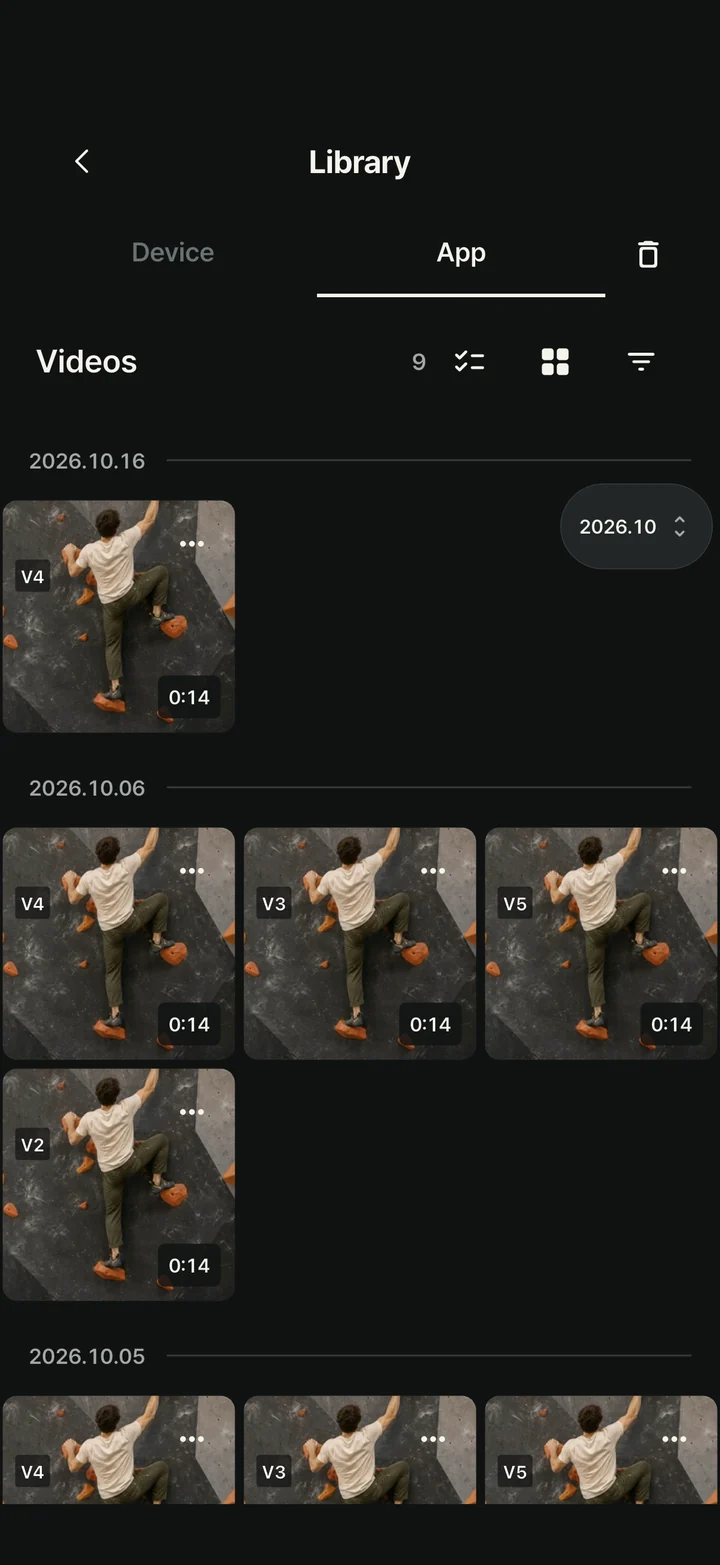
New recordings with a selected grade automatically show a grade badge on their library thumbnail after saving. You can still record without a grade and find unassigned records later to organize them.
STEP 02
Change the badge or hide it
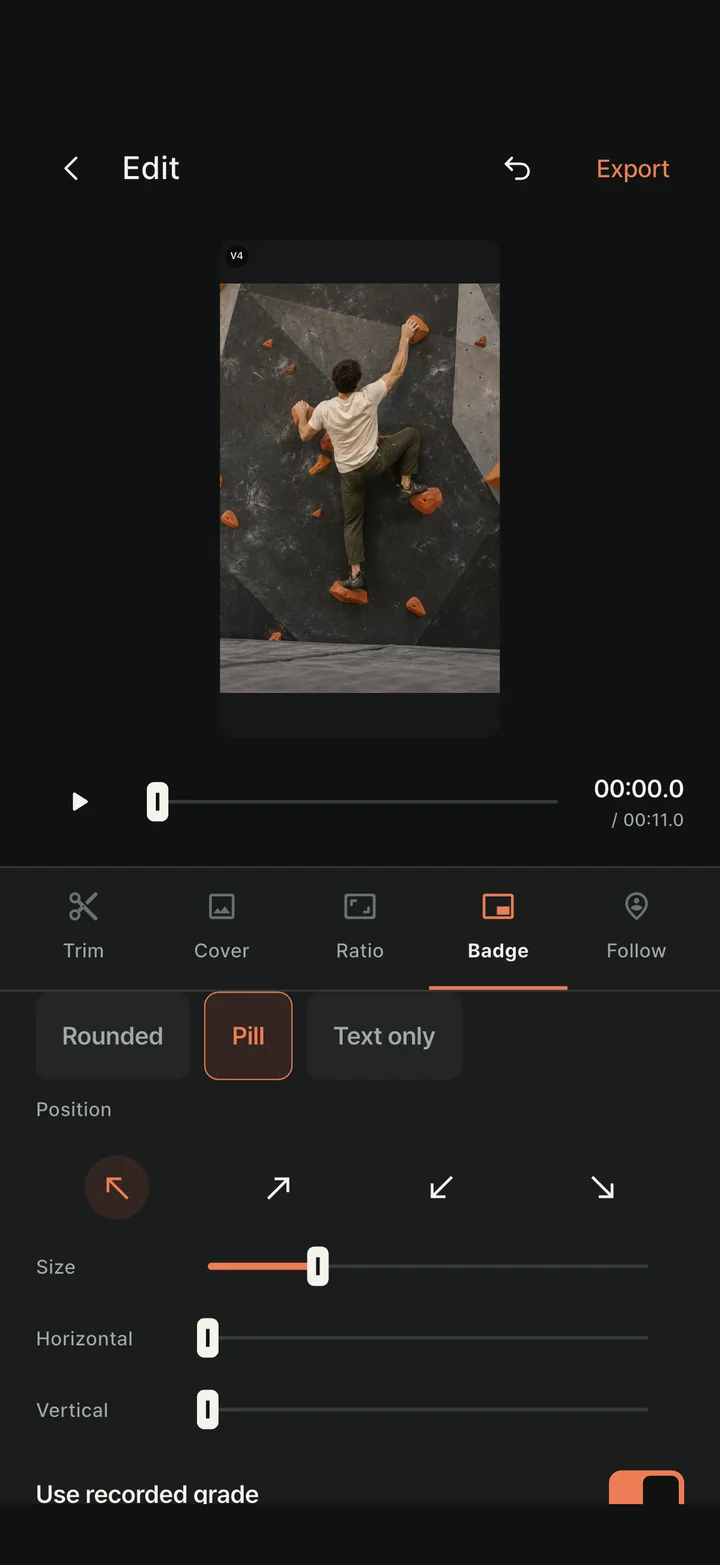
In the editor's Cover or Badge tab, toggle Show watermark on or off. Choose Rounded, Pill or Text only for the badge shape.
Use the corner buttons or horizontal and vertical controls to position it. Adjust the size so it does not cover holds or the climber. Saved settings also apply to the library thumbnail.
The same badge settings apply to newly exported edits. They do not rewrite the saved original or previously exported files. Export again if you want an MP4 with the updated badge.
STEP 03
Find videos with the same grade
Open Library from the recording screen and use App Folder to view your recordings. Choose a discipline and grade in the filters to narrow the results. For example, select bouldering and V4 to compare attempts at the same grade.
Hiding the badge does not delete the grade saved with the video. You can keep thumbnails uncluttered and still filter by grade. Badge visibility and grade classification are separate settings.
If a video does not appear, check whether other filters are active and clear them. To organize several videos, tap Select or long-press a video, choose the items and assign their grade.