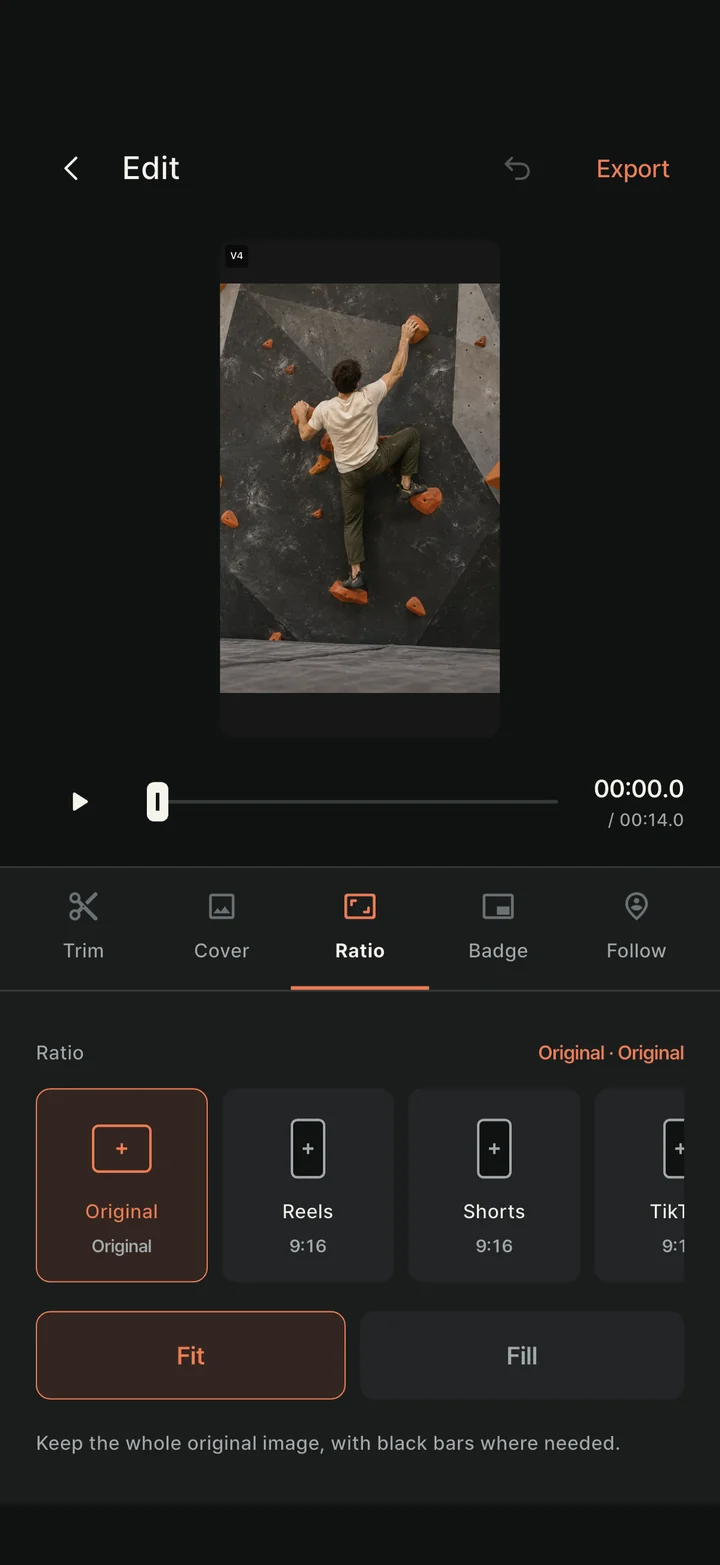
The same climb can need a different frame. Choose the ratio, then check that your hands and feet stay in view.
Edit → Ratio → Reels or Shorts 9:16 → Fit or Fill → Check the framing → Export
STEP 01
Choose 9:16 in the editor
Open a video from Library, choose Edit, then tap Ratio. For a vertical Reels or Shorts video, choose the corresponding 9:16 preset. You can also choose a 4:5 portrait feed, 1:1 square or 16:9 landscape format.
The ratio guide on the recording screen only helps you frame the shot. To create a file with a different aspect ratio from an existing recording, choose the ratio in the editor and export it.
Actual app captured in a simulator · Climbing scene is demo content
STEP 02
Fit the whole video or fill the frame
Fit keeps the whole original visible and fills unused space with black. Try it first when the starting and finishing holds are far apart or you want to keep your whole body in view.
Fill covers the chosen frame, which can move part of the original out of view. Adjust zoom and position, then play the video from start to finish to make sure your hands, feet and final hold are not cut off.
Framing only the first moment can miss a sideways move later. If the full route will not fit comfortably, use Fit instead of zooming in too far.
STEP 03
Finish posting with your exported video
Set resolution and audio in Export and create the MP4. Choosing a higher output resolution does not add detail that was not recorded. Check the finished video's ratio and cropped areas.
Send it to your chosen app through Share, or save the file and upload it later. Choosing a library cover in ClimbCut does not automatically change your social media post cover. Confirm the cover, caption and audience on the destination platform.